






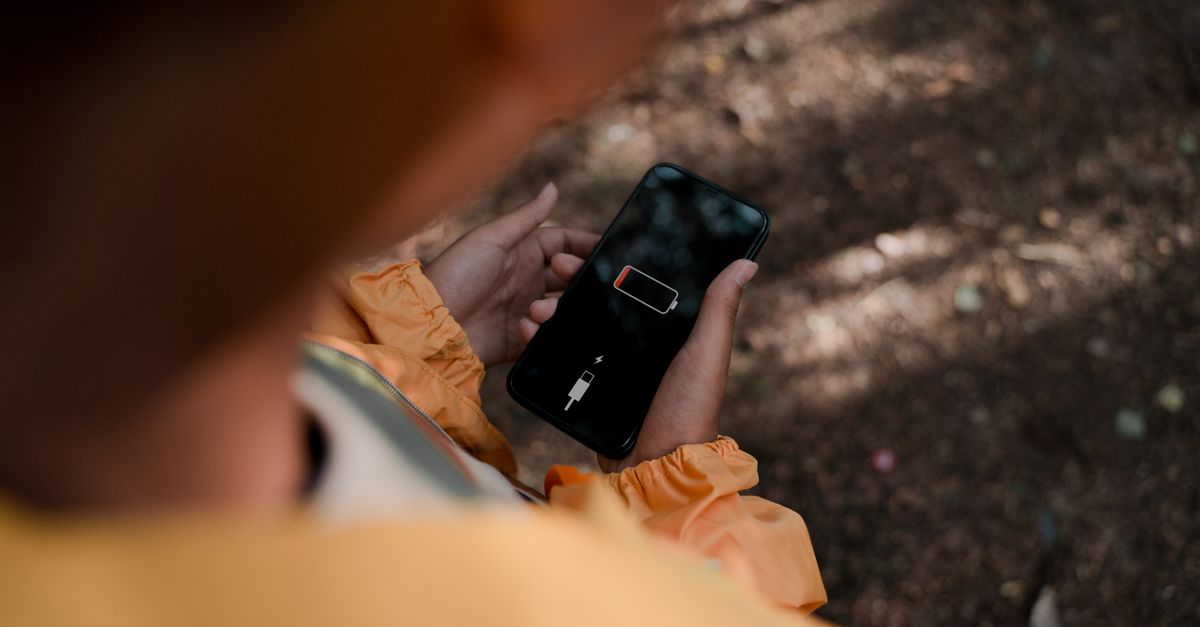
Battery performance is often the first thing that signals a smartphone’s decline. A phone that once powered through a full workday now stalls after a few hours of use. Many users assume that the only way to restore vitality is to replace the device entirely. In reality, most battery issues stem from everyday habits, software settings, and environmental factors that can be managed with a few deliberate changes. This guide explains the science behind smartphone batteries, debunks common myths, and provides a practical roadmap for extending battery life without buying a new phone.
1. Understanding Smartphone Battery Chemistry
Modern smartphones use lithium‑ion (Li‑Ion) or lithium‑polymer (Li‑Po) cells. These cells store energy as lithium ions move between the anode and cathode during charging and discharging. Two key metrics define battery health:
- Capacity: the total charge a battery can hold, measured in milliampere‑hours (mAh).
- Cycles: the number of full charge-discharge cycles a battery can undergo before its capacity drops to 80% of the original value.
Most smartphones are rated for 300-500 cycles. A typical user might reach this threshold in 2-3 years if they charge daily to 100% and discharge to 0% each time. Understanding these limits helps set realistic expectations for battery longevity.
2. The Myth of Full‑Charge Rituals
Many users believe that charging to 100% and letting the battery drain to 0% maximizes performance. However, Li‑Ion cells are stressed by extremes. Keeping a battery between 20% and 80% can reduce wear and extend its life. Modern operating systems now provide a “Battery Saver” mode that caps charge at 80% when the device is connected to a charger. If you need full capacity for a long trip, a brief 100% charge is acceptable, but avoid routine full cycles.
3. Temperature: The Silent Battery Killer
Heat accelerates chemical reactions inside the battery, leading to faster degradation. Cold temperatures can temporarily reduce capacity, but prolonged exposure to high heat is more damaging. Avoid charging under direct sunlight, in a hot car, or while using power‑hungry apps that generate heat. If you notice the phone feeling hot, let it rest for a few minutes before resuming use or charging.
4. Optimizing Software Settings for Battery Health
4.1 Battery Saver and Power‑Saving Modes
Activate battery saver when you need to preserve charge. This feature throttles background processes, reduces screen brightness, and limits CPU performance. Many devices also offer a “High‑Performance” mode that can be useful when you need extra power for gaming or video editing, but it consumes battery faster.
4.2 Managing Background App Activity
Check your battery usage stats to identify apps that drain power. Restrict background data, disable auto‑updates, or uninstall apps that are unnecessary. On Android, you can set “Battery Optimization” for each app. On iOS, use the “Background App Refresh” toggle.
4.3 Dark Mode and Display Settings
OLED displays consume less power when showing dark content because individual pixels are turned off. Switching to dark mode can shave several percent off daily usage. Additionally, enable adaptive brightness so the screen adjusts to ambient light, reducing unnecessary brightness spikes.
5. Charging Accessories That Matter
Not all chargers are created equal. Fast chargers (e.g., 20W USB‑C) deliver power more quickly but can generate more heat. Standard chargers (5W USB‑A) are gentler on the battery and may be preferable for overnight charging. Quality cables also influence charging efficiency; cheap cables can cause voltage drops and heat buildup.
6. Screen Usage and Power Consumption
The display is the biggest power consumer on most smartphones. Reducing brightness, lowering the refresh rate (e.g., from 90Hz to 60Hz), and disabling always‑on displays can cut power usage significantly. Many devices allow you to set a maximum brightness level in the settings menu.
7. Battery‑Intensive Apps: How to Identify and Manage Them
Open the battery usage screen to see which apps consume the most power. Look for apps that frequently refresh or run background services. Consider alternatives with lighter footprints, or adjust their notification settings to reduce background activity. Some apps provide built‑in battery‑saving modes that can be enabled in the app’s settings.
8. When to Replace a Battery vs a Phone
Decide whether to replace the battery or the phone by weighing cost, performance, and warranty. If your phone still runs well but the battery holds only 60% of its original capacity, a battery replacement is usually cheaper than a new device. If the phone’s performance has slowed, the operating system is outdated, or the device is physically damaged, a full replacement may be justified.
| Indicator | Action | Estimated Cost |
|---|---|---|
| Battery capacity < 70% | Replace battery | $30-$80 |
| Phone < 3 years old, still supported | Replace battery | $30-$80 |
| Phone > 4 years, no OS updates | Consider new phone | $300-$800 |
| Physical damage (cracked screen, water damage) | Repair or replace phone | $200-$600 |
9. DIY Battery Replacement: Pros and Cons
Replacing a battery yourself can save money, but it carries risks. You need specialized tools, a proper service manual, and a clean workspace. Improper handling can damage the phone, void warranties, or cause safety hazards. If you are comfortable with electronics and have a reputable repair guide, DIY can be a viable option. Otherwise, consider a professional service.
10. Third‑Party Battery Management Apps: Helpful or Harmful?
Some apps promise to extend battery life by optimizing usage. While they can offer useful insights, many run in the background, consuming power themselves. Always review app permissions, read user feedback, and be cautious of apps that request root or jailbreak access. A simple battery usage screen often provides the same information without added overhead.
11. Future Trends: Solid‑State Batteries and Beyond
Solid‑state batteries promise higher energy density, faster charging, and improved safety. Companies are investing heavily in this technology, but mass production is still a few years away. In the interim, improvements in battery chemistry, such as silicon‑anode cells, are gradually extending lifespan. Keep an eye on emerging products, as they may offer a significant upgrade over current Li‑Ion batteries.
12. Practical Checklist for Daily Battery Care
- Charge between 20% and 80% whenever possible.
- Use a reputable charger and cable; avoid cheap, untested accessories.
- Keep the phone in a cool environment; avoid hot cars and direct sunlight.
- Enable dark mode and adaptive brightness.
- Limit background app activity and disable unnecessary notifications.
- Monitor battery health in the settings menu; replace the battery if capacity falls below 70%.
- Schedule a battery health check every 12-18 months, especially if you notice rapid draining.
- When upgrading, consider a phone with a removable battery or one that supports easy battery swaps.
Conclusion
Smartphone battery management is a mix of science and habit. By understanding how your battery works, avoiding extreme charging habits, keeping the device cool, and fine‑tuning software settings, you can keep your phone running longer and delay the need for a new device. The key is to treat the battery as a living component that benefits from gentle care rather than harsh use. With these practices in place, you’ll enjoy more consistent performance and a healthier battery for years to come.
Leave a comment