
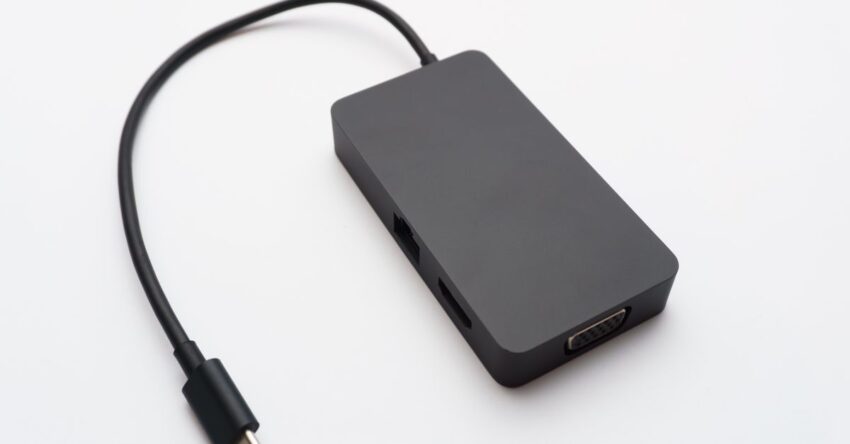
When a new standard appears, it rarely stays niche. The USB‑C connector, introduced in 2014, has moved from a specialty port on high‑end laptops to the ubiquitous cable that powers phones, tablets, and even kitchen appliances. Its symmetrical shape, high data bandwidth, and power‑delivery capabilities have made it the preferred choice for manufacturers and consumers alike. This article walks through the evolution of USB‑C, explains its technical strengths, highlights common pitfalls, and looks ahead to how the standard will continue to shape the tech landscape.
1. The Legacy of USB and the Birth of USB‑C
The Universal Serial Bus (USB) began in the mid‑1990s as a solution to the proliferation of proprietary connectors. Over the years, USB evolved through several revisions,USB 1.0, 2.0, 3.0, and 3.1,each increasing speed and power. However, the physical connectors (Type‑A and Type‑B) were asymmetrical, requiring careful orientation during connection. USB‑C was conceived to address these limitations by offering a reversible, high‑performance interface that could serve a wide range of devices.
2. Technical Specifications That Set USB‑C Apart
2.1 Reversible Design
USB‑C’s symmetrical shape eliminates the frustration of plugging a cable the wrong way. The connector can be inserted either way, which is especially useful in tight spaces like laptop ports or wearable devices.
2.2 Power Delivery (PD)
Standard USB 2.0 delivers 5 V at 0.5 A, but USB‑C with Power Delivery can negotiate up to 20 V at 5 A, delivering 100 W of power. This capability allows a single cable to charge laptops, phones, and even power external displays.
2.3 Data Transfer Modes
- USB 3.1 Gen 1 – 5 Gbps
- USB 3.1 Gen 2 – 10 Gbps
- USB4 – up to 40 Gbps
- Thunderbolt 3/4 (via USB‑C) – 40 Gbps, supports PCIe and DisplayPort
2.4 Alternate Modes
USB‑C ports can operate in alternate modes such as HDMI, DisplayPort, and MHL, allowing a single cable to transmit video signals to external monitors.
3. Power Delivery in Practice
Power Delivery is negotiated through a 20‑wire interface that communicates voltage, current, and temperature limits. Manufacturers use PD profiles to ensure safe charging. For example, a 65 W laptop charger typically negotiates 20 V at 3.25 A, while a phone might use 5 V at 2 A. Understanding these profiles helps consumers choose the right charger and avoid over‑charging.
4. Data Transfer and Video Output
USB‑C’s high bandwidth supports fast external storage and high‑resolution displays. When paired with Thunderbolt 3 or 4, a single cable can deliver 4K video at 60 Hz, 8K video at 30 Hz, and PCIe lanes for external GPUs. This convergence simplifies cable management and reduces clutter.
4.1 Common Use Cases
- External Hard Drives – 10 Gbps transfer speeds enable quick backups.
- Docking Stations – One cable connects to a laptop and expands to HDMI, Ethernet, and USB‑A ports.
- Gaming Monitors – USB‑C with DisplayPort Alternate Mode allows 144 Hz refresh rates.
5. Audio and Charging: A Dual Role
Many smartphones use USB‑C for both charging and audio. The USB‑C Audio Adapter, for example, plugs into a phone’s port and provides a 3.5 mm headphone jack, eliminating the need for a dedicated audio port. However, not all cables support audio, so consumers must verify the “audio” label on the cable packaging.
6. Device Compatibility Landscape
While USB‑C is widespread, not all devices use it in the same way. Some use it purely for charging, while others expose full data and video capabilities. Manufacturers often differentiate between “USB‑C” and “USB‑C with Thunderbolt” to indicate supported features. Consumers should check the device specifications before purchasing accessories.
6.1 Quick Compatibility Checklist
- Check the port label (USB‑C, USB‑C with PD, USB‑C with Thunderbolt).
- Verify the cable’s data and power ratings on the packaging.
- Confirm that the device supports the desired alternate mode (HDMI, DisplayPort).
- Test the cable with a known working device before using it for critical tasks.
7. Common Mistakes and Misconceptions
- Assuming All USB‑C Cables Are Equal – Cheap cables may lack proper shielding or power negotiation, leading to data loss or insufficient charging.
- Ignoring Cable Length – Longer cables can introduce signal attenuation. For USB‑3.1 Gen 2, keep cables under 0.5 m for optimal performance.
- Using Non‑Certified Cables for High Power – Inadequate conductors can overheat, posing a fire risk.
- Overlooking Firmware Updates – Some devices require firmware updates to support newer PD profiles or USB4.
8. Environmental Impact and Sustainability
USB‑C’s universal nature reduces electronic waste by enabling a single cable to replace multiple legacy cables. However, the increased power delivery capability raises concerns about energy consumption. Manufacturers are addressing this by implementing energy‑efficient PD profiles and encouraging the use of recycled materials in cable manufacturing.
9. Future Trends: USB‑4, Thunderbolt 5, and Beyond
USB‑4, standardized in 2019, merges USB‑3.2 and Thunderbolt 3 specifications, offering up to 40 Gbps and improved bandwidth allocation. Thunderbolt 5, expected in the mid‑2020s, may push speeds to 80 Gbps, further blurring the line between storage, video, and networking. These developments reinforce USB‑C’s role as the central hub for all data and power needs.
9.1 The Rise of USB‑C in Emerging Technologies
- Wearable Health Devices – Low‑power USB‑C allows continuous charging without bulky batteries.
- Smart Home Hubs – Unified connectivity simplifies installation and maintenance.
- Electric Vehicle (EV) Charging – USB‑C ports in car dashboards provide quick data updates and diagnostics.
10. Choosing the Right USB‑C Cable
When shopping for a USB‑C cable, consider the following factors:
- Certification – Look for USB‑IF certification to ensure compliance with standards.
- Wire Gauge – A 20 AWG or thicker wire supports higher current without overheating.
- Shielding – Proper shielding prevents electromagnetic interference, especially for data cables.
- Connector Quality – Gold‑plated contacts reduce corrosion and improve conductivity.
- Price vs. Performance – High‑quality cables often justify the cost through longevity and reliability.
11. DIY Repairs: When and How to Fix a USB‑C Cable
Many users encounter frayed or damaged USB‑C cables. While it’s tempting to replace them, a simple repair can restore functionality:
- Cut the cable near the damaged section.
- Strip 2 mm of insulation from the ends of each wire.
- Twist the corresponding wires together and secure with heat‑shrink tubing.
- Test the cable with a multimeter before use.
Note that this DIY approach is suitable for low‑power cables; high‑current or data cables require precise termination and are best left to professionals.
12. Conclusion: USB‑C as the Cornerstone of Tomorrow’s Connectivity
USB‑C’s versatility,reversible design, high power delivery, fast data transfer, and alternate modes,has made it the de‑facto standard for modern devices. While early adopters faced a learning curve, the ecosystem has matured into a reliable, efficient, and environmentally friendly solution. As USB‑4 and Thunderbolt 5 roll out, the role of USB‑C will only expand, reinforcing its status as the universal connector that powers our digital lives.
Whether you’re a casual user, a tech enthusiast, or a business professional, understanding USB‑C’s capabilities will help you make informed choices, reduce clutter, and future‑proof your devices.